

Quick answer: To download your Instagram data, go to Settings → Accounts Center (or Meta Account) → Your information and permissions → Export your information → Create export. Pick your profile and Export to device, choose all or some information, a date range and HTML or JSON, then tap Start export. Meta emails you when it's ready (up to 30 days); download it within 4 days.
Want Reels data from any public profile instead? Instagram's export only covers your own account. IShort, a free Chrome extension, copies the views, likes and comments of every Reel on any public profile into a CSV or Google Sheet.
How to Download Your Instagram Data (Official Steps)
The tool is now called Export your information (formerly Download your information). These are the steps in Instagram's Help Center as of October 2026. Meta is moving people from Accounts Center to Meta Account, so you may see either name. The menus under it are the same.
On a computer
- On instagram.com, click More (bottom left), then Settings.
- Click Accounts Center (or Meta Account), then Your information and permissions.
- Click Export your information, then Create export.
- Select the profile you want to export and click Next.
- Choose Export to device. (Export to external service sends it to a cloud service instead.)
- Set the information, date range, format, notification email and media quality (see the table).
- Click Start export. Instagram may ask for your password.
In the Instagram app
Tap your profile picture (bottom right), then ☰ Menu (top right). Tap Accounts Center or Meta Account → Your information and permissions → Export your information, then follow steps 3 to 7.
| Setting | Options (and what to pick) |
|---|---|
| Information | All available information, or only some types (posts, messages, followers...). Fewer types make a smaller file. |
| Date range | Last year (default), All time or custom dates. All time for a full backup. |
| Format | HTML to read it in a browser, or JSON to load it into another app. |
| Media quality | Higher, Medium (default) or Lower. Lower if storage is tight. |
| Notify | The email address Meta tells when the file is ready. |
How long does it take? Meta says it can take up to 30 days to email you the link, though small exports usually arrive much sooner. Once it's ready, you have 4 days to download it from Available downloads on the same screen.
What's in Your Instagram Data Download?
You get a ZIP file (several for big accounts) with the types you picked: posts, Reels and stories, comments, likes, followers and following, messages, saved items, search history, ad information and login activity. Unzip it and open the .html file if you chose HTML.
It's a personal archive, not an analytics report, and it only covers profiles you log into. For views and reach per Reel, export your Insights (next section). To save the Reel videos of a public profile, see how to download all Reels from a profile.
Export Instagram Insights to Google Sheets
Insights (views, reach, interactions) need a professional account, Creator or Business. The Insights screen goes back 90 days unless you pay for Meta One, so export monthly. Three ways to get them into a sheet:
| Method | How |
|---|---|
| Meta Business Suite Free, on a computer | Insights → Content → Export data. Pick the Instagram account, dates and posts or stories, then download the CSV. |
| Instagram app + Meta One Advanced, Expert or Max plan (still rolling out) | Professional dashboard → Insights → share icon. You get a CSV of reel, post and story insights. |
| API connector Paid, varies | Connect your account once; the sheet refreshes on a schedule (compared below). |
In Google Sheets, click File → Import → Upload, choose the CSV and pick Insert new sheet. Not sure where your numbers live? See how to view Instagram Insights on the app and desktop.
Download Reels Data from Any Public Profile (CSV/Sheets)
Instagram's export and Insights only cover your own account. For the public numbers of every Reel on any public profile (yours or a competitor's), use IShort, a free Chrome and Edge extension. It takes about a minute:
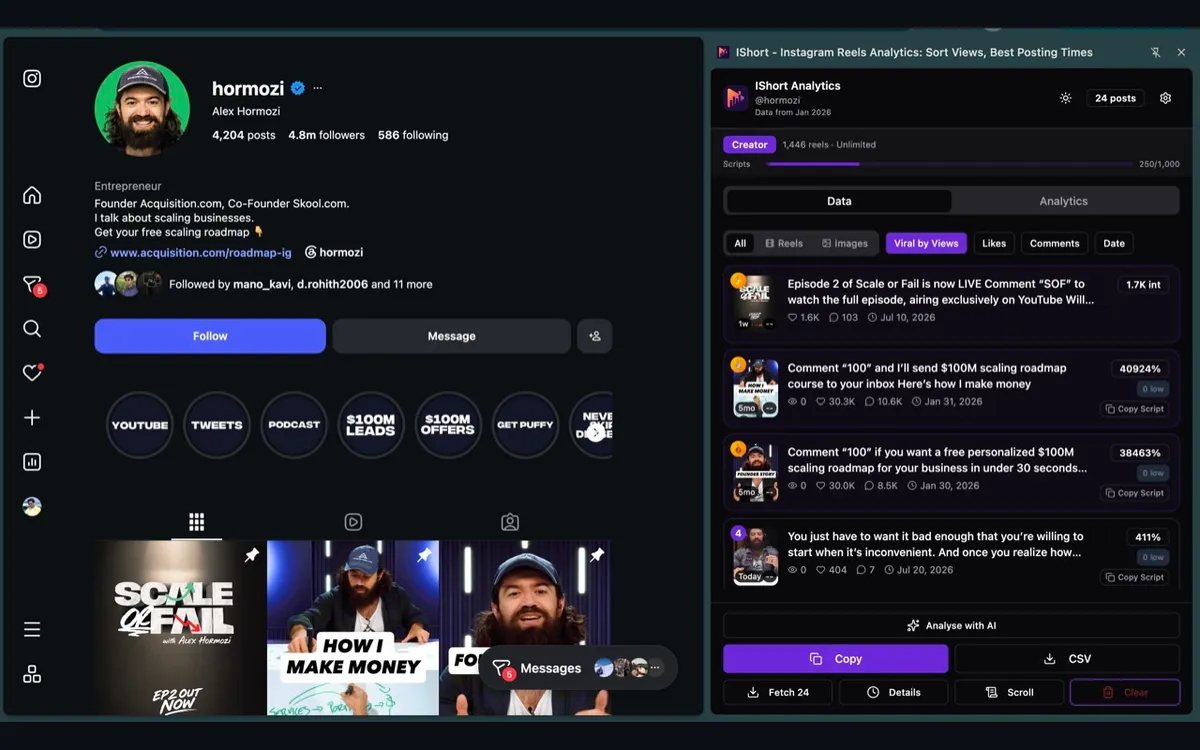
- Install IShort from the Chrome Web Store (free, also works on Edge).
- Open instagram.com/username/reels/ for your account or any public account.
- Let IShort collect the Reels: scroll the grid, or press IShort's Scroll button to load the rest automatically.
- Open the IShort side panel from the toolbar icon. You will see every collected Reel with its stats.
- Click Copy (for Google Sheets) or CSV (for a file).
- Paste into cell A1 of the "Paste here" tab (Ctrl+V or Cmd+V). One row per Reel, header row included.
What Lands in Your Sheet (the Real Column List)
These are the exact columns IShort writes, in this order. Two groups only appear when the data exists, so the sheet has 11 to 14 columns.
| Column | What it contains | Always there? |
|---|---|---|
| URL | Link to the Reel or post on instagram.com | Yes |
| Caption | Caption text, cut to 100 characters on Copy and 200 in the CSV | Yes |
| Type | Reel, image or carousel | Yes |
| Views | Play count (Instagram hides it on some posts) | Yes |
| Likes | Like count | Yes |
| Comments | Comment count | Yes |
| Shares, Saves | Share and save counts | Only when Instagram returns them for at least one post |
| Duration | Video length, written as "45s" or "1:05" ("N/A" for photos) | Yes |
| Engagement % | (likes + comments) / views x 100, two decimals. Called "Engagement" in the CSV | Yes |
| Date | Post date, e.g. "Sep 3, 2026" | Yes |
| Hashtags | All hashtags in the caption, space-separated | Yes |
| Music | Song or audio title | Yes (blank when none) |
| Transcript | The AI transcript, if you generated one for that Reel | Only when at least one Reel has a transcript |
IShort stores more fields than it exports (for example shortcode, mentions, dimensions and audio type), and uses them for the analytics slides. They are not export columns.
Free Google Sheets Template for Instagram Reels
Build this once and reuse it for every export. It has three tabs, and the formulas look columns up by their header name, so they keep working when the Shares, Saves or Transcript columns appear or disappear.
Tab 1: "Paste here"
Leave it empty. After each export, click cell A1 and paste. The first row is the header row IShort writes.
Tab 2: "Summary"
| What you want | Formula (paste into any cell of the Summary tab) |
|---|---|
| Reels in the export | =COUNTA('Paste here'!A2:A) |
| Average views | =AVERAGE(INDEX('Paste here'!A2:Z,0,MATCH("Views",'Paste here'!A1:Z1,0))) |
| Median engagement % | =MEDIAN(INDEX('Paste here'!A2:Z,0,MATCH("Engagement*",'Paste here'!A1:Z1,0))) |
| Top 10 Reels by views | =SORTN('Paste here'!A2:Z,10,0,MATCH("Views",'Paste here'!A1:Z1,0),FALSE) |
| Breakout Reels (2x average views or more) | =FILTER('Paste here'!A2:A,INDEX('Paste here'!A2:Z,0,MATCH("Views",'Paste here'!A1:Z1,0))>=2*AVERAGE(INDEX('Paste here'!A2:Z,0,MATCH("Views",'Paste here'!A1:Z1,0)))) |
Tab 3: "Charts"
Add two helper columns next to the pasted data, then chart them:
- Weekday:
=TEXT(J2,"ddd")where J2 is the first Date cell. Chart average views per weekday with=AVERAGEIF(weekday_range,"Mon",views_range), one row per day. - Duration in seconds:
=IF(ISNUMBER(H2),ROUND(H2*1440),IF(RIGHT(H2,1)="s",VALUE(LEFT(H2,LEN(H2)-1)),""))where H2 is the first Duration cell. Google Sheets reads "1:05" as a time on paste; the formula turns it back into 65 seconds. Bucket the result (under 15s, 15-30s, 30-60s, 60s+) and chart average views per bucket.
Column letters move depending on whether Shares and Saves are present, so check the header row once and adjust J2 and H2 if needed. Looker Studio or Tableau: connect this Google Sheet as a data source, or import the CSV directly.
IShort vs Instagram API Connectors
Most results for "Instagram insights to Google Sheets" are API connectors (Coupler.io, Supermetrics, Coefficient and similar). They do a different job. Pick by what you need:
| IShort (Copy / CSV) | API connectors | |
|---|---|---|
| Works on accounts you don't own | Yes, any public account | No, only accounts you connect |
| Needs a Business account + Meta login | No | Yes |
| Reach, watch time, demographics | No (not public) | Yes, for your own account |
| Auto-refresh on a schedule | No, you export when you want | Yes |
| Setup time | Install the extension, open the Reels page | Connect accounts and authorise Meta |
| Price | Free plan: 500 reels included; paid from $10/month | Varies; check each vendor's pricing page |
CSV Export vs. Copy to Clipboard
| Button | Best for | Format | Caption length |
|---|---|---|---|
| CSV | Excel, Numbers, archiving, Tableau | .csv file named reels_account_timestamp.csv | Up to 200 characters |
| Copy | Google Sheets, quick sharing | Tab-separated text | Up to 100 characters, line breaks removed |
Export Limits by Plan
| Plan | Reels you can collect and export | Price |
|---|---|---|
| Free | 500 reels (one-time allowance) | $0 |
| Hobby | 10,000 reels per billing month | $10/month |
| Creator | Unlimited | $29/month |
Note: the limit counts Reels collected, not exports. You can press Copy or CSV as often as you like on Reels you have already collected.
Real Use Cases for Exporting Instagram Reels Data
Client Reporting
Export data monthly to create performance reports for clients. Show them exactly which content drives results, with real numbers to back it up.
Content Audits
Export all your Reels from the past 6 months and analyze patterns. What topics get the most engagement? What posting times work best?
Trend Tracking
Export weekly to track how your metrics change over time. See if your engagement rate is improving or if certain content types are declining.
Team Sharing
Export to CSV and share with your team for collaborative analysis. Everyone can filter and sort the data in their preferred tool.
Competitive Analysis
Export data from competitor profiles to benchmark your performance. See what types of content work in your niche.
Hashtag Research
Export data and filter by hashtags to see which ones correlate with higher views and engagement for your content.
What You Can Learn from Exported Data
- Outliers: sort by Views to find your top performers, then study their topic, hook and format.
- Length: bucket the Duration column (see the template) to see which length your audience rewards.
- Hashtags: filter the Hashtags column for a tag and compare average views with and without it.
- Audio: filter the Music column to compare Reels that used the same song or original audio.
- Trend: export monthly and track how median engagement % moves. See the Reels monthly report template.
- Audit: use the numbers to run a free Instagram audit on any account.
IShort Export vs. Instagram's Data Download
Instagram's Export your information tool (formerly Download your information) is built for backups, not analytics. Here's how IShort's export compares:
| Feature | IShort Export | Instagram Data Download |
|---|---|---|
| Export Speed | Instant | Up to 30 days, per Meta |
| Format | Clean CSV/TSV ready for analysis | HTML or JSON files in a ZIP |
| Metrics Included | 11-14 columns per Reel, including engagement % | Your content and activity; no per-Reel analytics |
| Works on Other Profiles | Yes (any public account) | No (only your own data) |
| Ease of Use | One click | About 7 steps in Accounts Center |
Other Ways to Use the Export
Excel: click CSV and open the file. Captions are wrapped in quotes, so commas inside them stay in one cell.
Tableau or Looker Studio: import the CSV, or connect the Google Sheet as a data source so each new paste updates your report.
Competitor exports: open a competitor's Reels page and export the same way; private accounts are not accessible. See the Instagram profile analyzer guide.
Scheduled exports: not supported. IShort runs when you open it; set a weekly reminder and paste into the same template.
Agencies: the Creator plan has no Reel cap. Keep one template per client and combine them with IMPORTRANGE.
Privacy & Data Security
IShort only reads data Instagram already shows in your browser. It never asks for your Instagram password. Collected post data is stored in your browser, and Copy and CSV are created on your computer; the export itself is not uploaded anywhere. (AI transcripts are the exception: the audio of a Reel you choose to transcribe is processed on IShort's servers.)
Frequently Asked Questions
How do I download my Instagram data?
Go to Settings → Accounts Center (or Meta Account) → Your information and permissions → Export your information → Create export. Choose your profile and Export to device, pick the information, date range and format (HTML or JSON), then tap Start export. Meta emails you when the file is ready.
How long does an Instagram data download take?
Meta says it can take up to 30 days to send the link, though small exports usually arrive much sooner. When it is ready, you have 4 days to download it from Available downloads before you need to request a new one.
Does the Instagram data download include Insights?
Not in a form you can analyse. It is an archive of your content and activity. For views, reach and interactions per post, export Insights from Meta Business Suite (Insights → Content → Export data) as a CSV, then import it into Google Sheets.
Can I download someone else's Instagram data?
Not with Instagram's export tool: it only covers profiles you log into. For the public numbers of another profile's Reels (views, likes, comments, captions, hashtags), open their Reels tab with IShort and export to CSV or Google Sheets.
How do I export my Instagram Reels data?
Export Instagram Reels data by installing the free IShort Chrome extension, opening your /reels/ tab, scrolling to collect, then clicking CSV or Copy. CSV saves to disk; Copy pastes straight into Sheets or Excel. You get 11-14 columns per Reel.
What data points does IShort export for each Reel?
IShort exports these columns per Reel: URL, Caption, Type, Views, Likes, Comments, Shares and Saves (when Instagram returns them), Duration, Engagement %, Date, Hashtags, Music, and Transcript (when one exists). That is 11 to 14 columns.
Is there a limit to how many Reels I can export?
Yes. Free covers your first 500 reels (one-time allowance), Hobby ($10/mo) covers 10,000 per billing month, and Creator ($29/mo) is unlimited. Paid limits renew with each monthly payment, and you can export as many times as you like.
Does IShort export Instagram Stories or Posts data?
It exports Reels, photo posts and carousels from a profile (the Type column tells them apart). It does not export Stories.
Will Instagram ban me for using IShort to export data?
No. IShort only reads publicly visible data that Instagram already shows in your browser. It never asks for your Instagram password and never acts on your account.
Sources
- Review and export a copy of your Instagram information — Instagram Help Center (steps, up to 30 days, 4-day download window; checked Oct 22, 2026)
- Information available to download from your Instagram profile — Instagram Help Center
- Export your Page's insights data — Facebook Help Center (Meta Business Suite export)
- View account and content insights on Instagram with Meta One — Meta Help Center (90-day limit, CSV export on Advanced, Expert and Max)
- What Data Is in Your Instagram File, and How to Download It — Redact (Oct 2026 screenshots: default settings, file contents)